How to Evaluate Computer-Use AI Agents for Small Business: The Complete 2026 Guide
Safely pilot computer-use AI agents: pick one workflow, set metrics, sandbox, least privilege, approval gates, ROI worksheet, and a vendor questionnaire for SMBs.
Computer-use AI agents do not need a special API into every tool you own. They look at a screen (or a browser), move a mouse, type into fields, and follow a goal the way a careful junior employee might. In 2026 the category is no longer a lab demo—labs expose computer-use APIs, packaged vendors sell office automation, and coverage of firms like Prentis shows how fast “use the software you already pay for” is becoming a buying category.
That promise is real for repetitive office work. It is also easy to misuse.
This is the definitive evaluation and pilot guide for small businesses—not a product glossary. For definitions, start with what is computer use and what is agentic AI. For the broader agent landscape, see AI agents for small business. Here you will pick one high-ROI workflow, define success metrics, sandbox the agent, lock down permissions, add human approval gates, log what happened, and decide with a simple ROI worksheet whether to expand—or stop.
Table of contents
- Quick summary
- What is a computer-use AI agent?
- Who should evaluate one
- Who should not start here
- Key features to insist on
- Pricing patterns
- Pros and cons
- Best use cases
- Limitations
- How to evaluate (12-step pilot)
- Comparison tables
- Decision matrix
- Alternatives
- Things to consider before choosing
- Common mistakes
- Pilot checklist
- Frequently asked questions
- Final recommendation
Quick summary
| If you need… | Do this |
|---|---|
| A definition of the category | Read computer use first |
| A safe first ROI win | Follow the 12-step pilot below on one workflow |
| News / market context | Prentis office automation briefing |
| Build vs click tradeoff | Prefer API/iPaaS; only use UI agents for leftover gaps |
What is a computer-use AI agent?
A computer-use agent perceives UI state (pixels, DOM, accessibility tree—vendor-dependent) and issues actions: click, type, scroll, open app, wait. It is closer to a careful remote-desktop assistant than to a Zapier Zap.
According to Anthropic’s computer use documentation, Claude’s computer use tool (beta) provides screenshot capture, mouse control, keyboard input, and desktop automation inside an environment you control. Official guidance emphasizes unique risks—especially on the open internet—and recommends dedicated VMs/containers, limited privileges, domain allowlists, and human confirmation for consequential actions. Prompt injection via webpage or image content remains a real failure mode even with classifier defenses.
OpenAI and other vendors package similar “operate a browser / computer” loops in consumer or API products; product names and packaging change often. For evaluation purposes, treat harness quality (sandbox, logs, kill switch, approvals) as more important than last week’s benchmark tweet. Industry analyses (including a16z’s computer-use capability review) stress that production systems wrap model clicks in orchestration, verification, and retries—not raw demos.
Computer use shines when the UI is the only practical interface: legacy desktop software, admin panels without webhooks, multi-app checklists of 10–40 minutes.
Prefer integrations when a normal API, export, or Workspace Studio / Zapier flow already moves the data cleanly.
Who should evaluate one
- Founders, ops leads, and office managers at roughly 1–100 person companies
- Teams living in CRMs, spreadsheets, booking tools, and browser admin panels
- Agencies that repeat the same weekly reporting click-paths
- Technical generalists who can own accounts and permissions (developer not required for a supervised pilot)
If you have ever wished a VA could “just click through that weekly export,” this evaluation process is for you.
Who should not start here
- Anyone whose first idea is payroll, wires, live refunds, or mass customer email
- Teams without a non-production sandbox or fake-data clone
- Regulated PHI/PCI surfaces without counsel and a written recording policy
- Companies that already have a reliable API integration for the same job
- Buyers chasing “agentic” branding without a written checklist—read agentic AI and come back with one workflow
Key features to insist on
Before you pay for seats, demand that the vendor (or your internal build) can show:
- Isolated runtime — VM, container, or dedicated machine—not the founder’s daily laptop session
- Least-privilege identity — dedicated
agent-ops@user with narrow scopes - Human approval gates — especially for sends, money, access changes
- Hard caps — max steps, max minutes, max retries per run
- Exportable action logs — timestamped clicks + screenshots/DOM around risky steps
- Kill switch — revoke sessions and disable the agent user in one procedure
- Stop conditions — CAPTCHA, unexpected login, balance screens, unknown dialogs
- Clear data policy — where recordings live, retention, training defaults, tenant isolation
If the product cannot operate without Domain Admin / Workspace Super Admin “so it can see everything,” that is a product finding—not a reason to widen permissions.
Pricing patterns
Exact SKUs change. Evaluate bill shape, not a single sticker price.
| Pricing shape | What you pay for | Watch-outs for SMBs |
|---|---|---|
| Seat subscription | Per user / month (chat + agent modes bundled) | Easy to buy; easy to under-measure ROI |
| API / token + computer loop | Model tokens + screenshot-heavy steps | Runs can cost more than chat; cap concurrency |
| Per run / computer-minute | Metered automation time | Great for honesty; surprises if retries explode |
| Packaged office agent vendor | Platform fee + usage | Ask for a sample invoice at your volume |
Directional example from public Claude API list rates: Opus-class work is often cited around $5 / $25 per million input/output tokens (Claude pricing); computer-use loops add screenshot tokens and step count, so cost-per-finished-task matters more than list rates alone. Packaged ChatGPT agent features typically sit inside Plus/Pro/Business seats—confirm current inclusions on OpenAI’s pricing page.
Buyer rule: force a sample monthly bill for your expected runs including failed retries and human review time.
Pros and cons
Pros
- Automates software you already pay for without waiting on APIs
- Fits checklist work a junior hire could follow for 10–40 minutes
- Can mix with Zapier/API: agents for leftover UI, integrations for core data
- Measurable ROI when you track completion, accuracy, and review minutes
Cons
- Wrong clicks can look like confident success
- UI redesigns break paths overnight
- Screen recordings become sensitive data
- Prompt injection and unexpected login pages raise security stakes
- Review + cleanup can erase ‘time saved’ if you skip metrics
Best use cases
Best-for table
| Profile | Best first workflow | Why |
|---|---|---|
| Services firm / agency | CRM closed-won export → sheet → draft internal Slack | Repetitive, measurable, low blast radius if sends need approval |
| Ops / office manager | Rename and file inbound PDFs into client folders | High frequency; risk manageable with folder allowlists |
| Project-led team | Standup notes → status updates in PM tool (approve writes) | Medium frequency; keep humans on production until accuracy proven |
| Developer-led SMB | API/iPaaS for core sync; computer use only for the awkward admin panel | Avoid UI agents as a badge of modernity |
Do not pilot first: refunds, payroll, wire approvals, mass customer messages, security admin consoles.
Limitations
- Benchmarks (OSWorld and peers) are capability ceilings—not guarantees for your HubSpot theme or QuickBooks layout
- Computer use remains beta or rapidly evolving on major platforms—expect breakage and policy changes
- MFA, SSO, and hardware keys often block naive setups; defeating MFA casually is a hard fail
- Silent wrong success (wrong filter, wrong client tab) is worse than a loud crash
- Agents do not replace security review—they expand the attack surface if misconfigured (phishing defense context)
How to evaluate (12-step pilot)
Prerequisites
- A list of 5–10 weekly hand tasks in software
- A non-production environment when possible (sandbox CRM, test Workspace user, cloned sheet with fake data)
- One pilot owner and a separate reviewer for money-adjacent steps
- Password manager + dedicated agent account—never the founder’s admin login
- 60–90 minutes for a task brief and one-page success scorecard
Step 1 — Confirm computer use is the right tool
Good fit: multi-step UI work, legacy desktop apps, panels without webhooks, stable checklists.
Poor first fit: irreversible money moves, high-variance creative work, deep emotional customer judgment, broad security consoles.
If Zapier/Make/n8n or a native export already solves it, prefer that (comparison). Sometimes a small internal app beats brittle clicking forever—see Emergent vs Replit.
Step 2 — Pick one high-ROI repetitive workflow
Score each candidate 1–5 on frequency, duration, variance, and blast radius. Start with the highest total that is also safe.
| Filter | Ask |
|---|---|
| Frequency | How many times per week? |
| Duration | How many minutes per run today? |
| Variance | Mostly the same path, or unique every time? |
| Blast radius | If the agent clicks wrong, what is the worst realistic outcome? |
Write the workflow as a checklist a new hire could follow. If you cannot write the checklist, the agent will not invent a reliable one.
Step 3 — Define success metrics before the demo
Minimum metrics for a 2–4 week pilot:
- Completion rate — % of runs that finish without human rescue
- Accuracy — % of outputs that match the checklist (100% spot-check for first 20 runs)
- Human minutes per run — review, fix, or restart
- Cycle time — wall-clock trigger → finished artifact
- Incidents — wrong account, wrong file, unexpected dialogs, credential prompts
Example thresholds: completion ≥80% by week 2; accuracy ≥95%; review ≤3 minutes; zero money movement; zero customer emails without approval; pause after two severity-high incidents.
Without pre-written thresholds, every demo looks like a success.
Step 4 — Write a tight task brief
Include: one-sentence goal; exact apps/URLs; agent account; step checklist with expected screens; done-looks-like sample; stop conditions; allowed vs forbidden actions; escalation path.
Example goal: “Every Monday by 10:00, export last week’s Closed-Won deals from HubSpot to CSV, append new rows to the Weekly Wins sheet tab, and draft a Slack message for #sales—do not send until Alex reacts with ✅.”
Step 5 — Sandbox first, production later
Sandbox options: CRM sandbox with fake companies; scrambled sheet clone; separate browser profile/OS user; network rules blocking banking/payroll domains.
Graduate only when: checklist completes 10 times in a row; logs are readable by a non-engineer; reviewer can explain every action; least-privilege account works without elevating to admin.
Do not “just try it on the real CRM for an afternoon.”
Step 6 — Apply least privilege
Do: unique agent-ops@ identity; narrow write scopes; shared mailbox with retention if email is required—not the CEO inbox; secrets in a password manager; separate VM when supported.
Do not: founder admin session; Domain Admin / Super Admin “for visibility”; simultaneous banking + payroll + production CRM; disable MFA for convenience.
Anthropic’s own guidance aligns: dedicated low-privilege environments, avoid exposing login secrets, allowlist domains, and require humans for consequential consent (docs).
Step 7 — Map human approval gates
| Step type | Gate |
|---|---|
| Read / export / draft internal note | Auto or notify |
| Write to internal sheet with undo | Notify |
| Send Slack / email / WhatsApp | Approve |
| Create/update customer records in production | Approve until accuracy proven |
| Money, access, legal, HR | Approve always—or humans only |
Pattern: agent prepares the artifact; human approves; agent performs the irreversible step. Keep the pilot narrow so approvals stay meaningful.
Step 8 — Demand usable logging
Ask vendors to show a failed-run log: timestamped actions, screenshots around risky steps, final status, exportable retention, who at the vendor can view recordings.
Red-team test: can a new hire reconstruct the failure in under five minutes?
Step 9 — Pre-brief failure modes
- Wrong window / similarly named client tab
- UI drift after a vendor redesign
- Timing—typing before the page loads
- Dialog traps (cookies, SSO, “are you sure?”)
- Silent wrong success (wrong filter)
- Credential phishing surface—stop, do not type secrets into lookalikes
- Runaway loops without step/time caps
Stop conditions and hard max steps/minutes are not optional.
Step 10 — Two-week scorecard pilot
Week 1: sandbox only; watch every run; log interventions; tighten the checklist.
Week 2: scheduled unattended sandbox runs; 100% spot-check; measure review minutes; 30-minute go/no-go with owner + skeptic.
Go only if Step 3 thresholds are met and you have a rollback plan (disable agent user, revoke sessions, revert last known-good sheet).
Step 11 — Honest ROI worksheet
Inputs:
- A = minutes per manual run today
- B = runs per week
- C = fully loaded hourly cost
- D = agent subscription + estimated compute for this workflow (monthly)
- E = average human review minutes per agent run after week 2
- F = error cleanup hours per month
Weekly labor saved (hours) ≈ ((A − E) × B) / 60
Monthly labor value ≈ weekly hours × 4.3 × C
Net monthly ≈ labor value − D − (F × C)
Footnote morale benefits. Do not count “strategic AI transformation” as cash. A single misfiled confidential PDF can erase months of savings—that is why blast radius belongs in Step 2.
Step 12 — Vendor questionnaire
Get written answers before expanding seats:
- Where do recordings/DOM snapshots live? Who can access them?
- Is customer data used for training? Opt-out default?
- Tenant isolation—can another customer ever see our pixels?
- Supported OS/browser versions; what breaks on UI change?
- MFA, SSO, hardware keys—supported patterns?
- Kill switch for runaway sessions?
- Exportable action logs for compliance?
- Incident response if the agent messages the wrong customer?
- Pricing shape—sample bill at our volume including retries?
- Exit—one-click off + revoke all sessions?
Comparison tables
Table 1 — Computer use vs common alternatives
| Approach | Best when | Weak when | SMB default |
|---|---|---|---|
| Computer-use agent | UI is the only interface; multi-app checklist | Clean API exists; high blast radius | Pilot for leftover gaps |
| Zapier / Make / n8n | Apps have connectors; event-driven sync | Legacy desktop with no API | Prefer first if connectors exist |
| Native Workspace / suite AI | Work already lives in Docs/Gmail/Meet | Outside the suite | Use for in-suite drafts |
| Human VA | Ambiguity and judgment dominate | Identical 7 a.m. clicks every week | Keep for exceptions |
| Custom internal app | Same brittle UI forever; engineering available | One-off rare tasks | Consider after UI agent proves pain |
Table 2 — Deployment lanes (how you buy it)
| Lane | Examples (directional) | Control | Typical buyer fit |
|---|---|---|---|
| API computer use in your VM | Claude computer use tool (beta) | You own sandbox, network, logs | Teams with a technical owner |
| Hosted chat agent / browser agent | Packaged ChatGPT agent-style products | Vendor-hosted runtime; easier start | Founders wanting low setup |
| Office automation vendor | Specialized computer-use startups | Packaged workflows + support | Ops teams buying a pilot SKU |
| Classic RPA | Legacy RPA suites | Brittle selectors; mature governance | Enterprises with existing RPA staff |
Decision matrix
Score each candidate workflow 1–5. Weight safety highest.
| Criterion (weight) | Workflow A | Workflow B | Workflow C |
|---|---|---|---|
| Frequency × duration (×2) | |||
| Path stability / low variance (×2) | |||
| Low blast radius (×3) | |||
| Sandbox available (×2) | |||
| Integration alternative already exists? (×−2 if yes) | |||
| Clear owner + reviewer (×1) |
Rule: pick the highest score that is still safe. A high-pain refund workflow loses to a boring export every time for pilot #1.
Alternatives
- iPaaS: n8n vs Zapier vs Make
- Google-native automation: Google Workspace Studio
- Chat copilots without click autonomy: Claude for small business
- Broader agent strategy: AI agents for small business
- Build a thin internal tool: Emergent vs Replit
Things to consider before choosing
- Is the UI truly the only interface—or are you avoiding an afternoon of Zapier setup?
- Can you name the worst realistic wrong click in one sentence?
- Do you have a sandbox and a dedicated identity ready this week?
- Who approves sends—and will they still care after approval fatigue sets in?
- Where will screen recordings live, and who can watch them?
- What is the kill switch rehearsal date?
- How will you re-test after the target app’s next UI redesign?
- Are you evaluating a vendor demo—or your checklist under your metrics?
Common mistakes
- Starting with refunds, payroll, or wire approvals
- Running under an admin’s everyday laptop session
- Judging success by a polished vendor video
- Skipping written stop conditions and step caps
- Counting only “time saved,” ignoring review + cleanup
- Expanding to five workflows before one is stable
- Disabling MFA or sharing OTP codes into vendor chat
- Assuming computer use replaces security review
- No rollback plan for bad writes
- Confusing “the agent finished” with “the agent was correct”
- Pasting production credentials into a shared demo environment
- Treating prompt injection as theoretical—unexpected pages can instruct the model
Pilot checklist
- One workflow written as a new-hire checklist
- Success thresholds written before any demo
- Sandbox or fake-data environment ready
- Dedicated least-privilege agent account created
- Approval map (auto / notify / approve) for every step
- Max steps, max minutes, max retries configured
- Failed-run log reviewed by a non-engineer
- Kill switch rehearsed once on purpose
- Two-week scorecard owner + skeptic scheduled
- ROI worksheet includes review + cleanup hours
- Vendor questionnaire answered in writing
- Go/no-go decision documented (stop is allowed)
Frequently asked questions
Do we need a developer to pilot this?
Not for a supervised pilot on a simple checklist. You do need someone careful with accounts and permissions. Bring a developer (or IT provider) before wide production rollout, SSO hardening, or custom allowlists.
What if our critical tools have APIs?
Use the API. Computer use is a bridge for gaps, not a badge of modernity. Many teams mix both: API for core data movement, computer use for the awkward leftover UI.
How long should a pilot last?
Two weeks of measured runs is enough for a go/no-go on one workflow. Four weeks if the task only runs a few times per week and you lack sample size.
Can the agent handle MFA?
Sometimes, with vendor-supported patterns (dedicated device, allowlisted IPs, SSO). Never defeat MFA by sharing your primary authenticator casually. If MFA cannot be done safely, pick a different workflow.
What about regulated industries?
Treat screen recordings as sensitive data. Involve compliance early. For PHI/PCI/financial advice surfaces, default to human-only until counsel and vendors agree on controls—and often prefer non-computer-use architectures.
Is this better than hiring a VA?
Different tradeoffs. A VA handles ambiguity and judgment; an agent handles identical clicks at 7 a.m. Many SMBs keep both: agent for the checklist, human for exceptions.
When should we stop the project?
If accuracy stalls below your threshold, review time exceeds manual time, or you cannot run least-privilege safely. Stopping is a successful evaluation outcome.
How is this different from “agentic AI”?
Agentic AI is the broad category of multi-step tool-using systems (guide). Computer use is one interface style—controlling GUIs. Evaluate containment the same way; implement with UI-specific failure modes in mind.
Are public benchmarks enough to buy?
No. Use them as a capability ceiling. Your go/no-go depends on your checklist, logs, and ROI worksheet.
Should we build on Claude computer use ourselves?
Only if you can own the sandbox, logging, and approvals. Anthropic documents computer use as a beta tool with explicit security precautions (docs). Many SMBs are better served by a packaged vendor for pilot #1—then revisit DIY if volume justifies engineering.
Final recommendation
Computer-use agents can reclaim hours trapped in UI busywork. They can also click the wrong button with perfect confidence.
Your advantage as a small business is not buying early. It is evaluating like an adult: one workflow, written metrics, sandbox, least privilege, human gates, real logs, and an ROI worksheet that includes cleanup time.
Pick the boring checklist this week. If it cannot survive a sandbox with a narrow account, it does not deserve production.
Sources
- Computer use tool — Anthropic / Claude Docs
- Claude plans & pricing
- ChatGPT pricing — OpenAI
- Can agents use a computer yet? — a16z
The AI edge, delivered every Tuesday
One 5-minute email: the tools worth your money, the plays that are working right now, and zero hype. Unsubscribe anytime.
No spam. No selling your data. Read by owners of restaurants, gyms, clinics, and agencies across the US, UK, Canada, and Australia.
Key takeaway
Safely pilot computer-use AI agents: pick one workflow, set metrics, sandbox, least privilege, approval gates, ROI worksheet, and a vendor questionnaire for SMBs. For more step-by-step guides, browse our blog or explore Automation.
Frequently asked questions
Do we need a developer to pilot this?
Not for a supervised pilot on a simple checklist. You do need someone careful with accounts and permissions. Bring a developer (or IT provider) before wide production rollout, SSO hardening, or custom allowlists.
What if our critical tools have APIs?
Use the API. Computer use is a bridge for gaps, not a badge of modernity. Many teams mix both: API for core data movement, computer use for the awkward leftover UI.
How long should a pilot last?
Two weeks of measured runs is enough for a go/no-go on one workflow. Four weeks if the task only runs a few times per week and you lack sample size.
Can the agent handle MFA?
Sometimes, with vendor-supported patterns (dedicated device, allowlisted IPs, SSO). Never defeat MFA by sharing your primary authenticator casually. If MFA cannot be done safely, pick a different workflow.
What about regulated industries?
Treat screen recordings as sensitive data. Involve compliance early. For PHI/PCI/financial advice surfaces, default to human-only until counsel and vendors agree on controls—and often prefer non-computer-use architectures.
Is this better than hiring a VA?
Different tradeoffs. A VA handles ambiguity and judgment; an agent handles identical clicks at 7 a.m. Many SMBs keep both: agent for the checklist, human for exceptions.
When should we stop the project?
If accuracy stalls below your threshold, review time exceeds manual time, or you cannot run least-privilege safely. Stopping is a successful evaluation outcome.
How is this different from agentic AI?
Agentic AI is the broad category of multi-step tool-using systems. Computer use is one interface style—controlling GUIs. Evaluate containment the same way; implement with UI-specific failure modes in mind.
Are public benchmarks enough to buy?
No. Use them as a capability ceiling. Your go/no-go depends on your checklist, logs, and ROI worksheet.
Should we build on Claude computer use ourselves?
Only if you can own the sandbox, logging, and approvals. Anthropic documents computer use as a beta tool with explicit security precautions. Many SMBs are better served by a packaged vendor for pilot #1.
Written by
AI Growthub StaffEditorial Team
The AI Growthub editorial team covers practical AI news, tools, and workflows for small business owners. Every article is fact-checked against primary sources before publication.
Comments are coming soon
We’re building a discussion space for business owners. Until then, reply to any newsletter issue — we read everything.
Related posts

Google Workspace Studio for Small Business (2026): The Complete Guide
Build Google Workspace Studio flows for SMBs: Gmail invoice logging, Meet follow-ups, Sheets triggers, limits, approval rules, and when Zapier still wins.
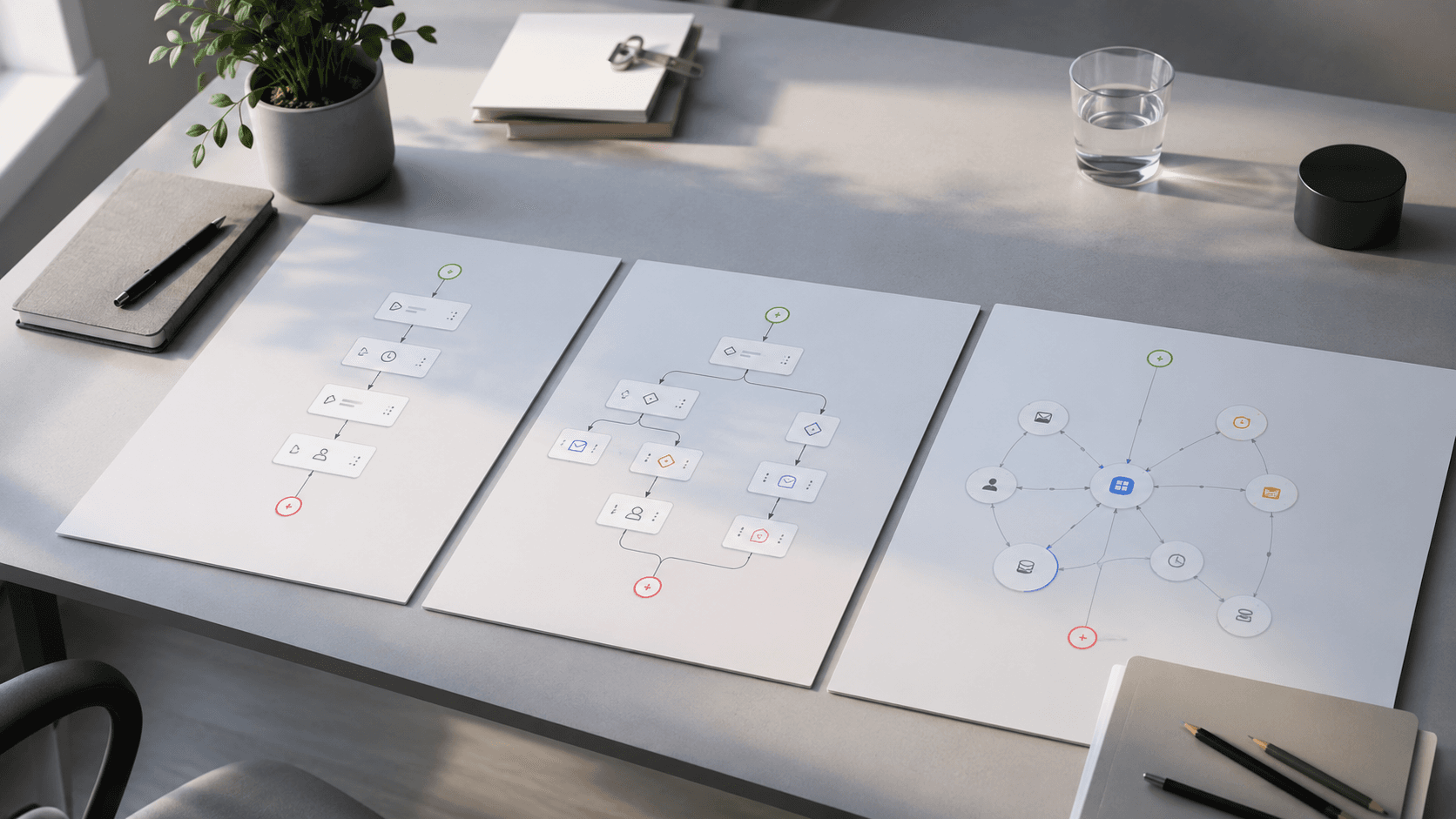
n8n vs Zapier vs Make (2026): Best Automation Platform for SMBs?
Compare n8n vs Zapier vs Make for small business: task vs credit vs execution pricing, AI agents, setup paths, and which iPaaS to start on in 2026.
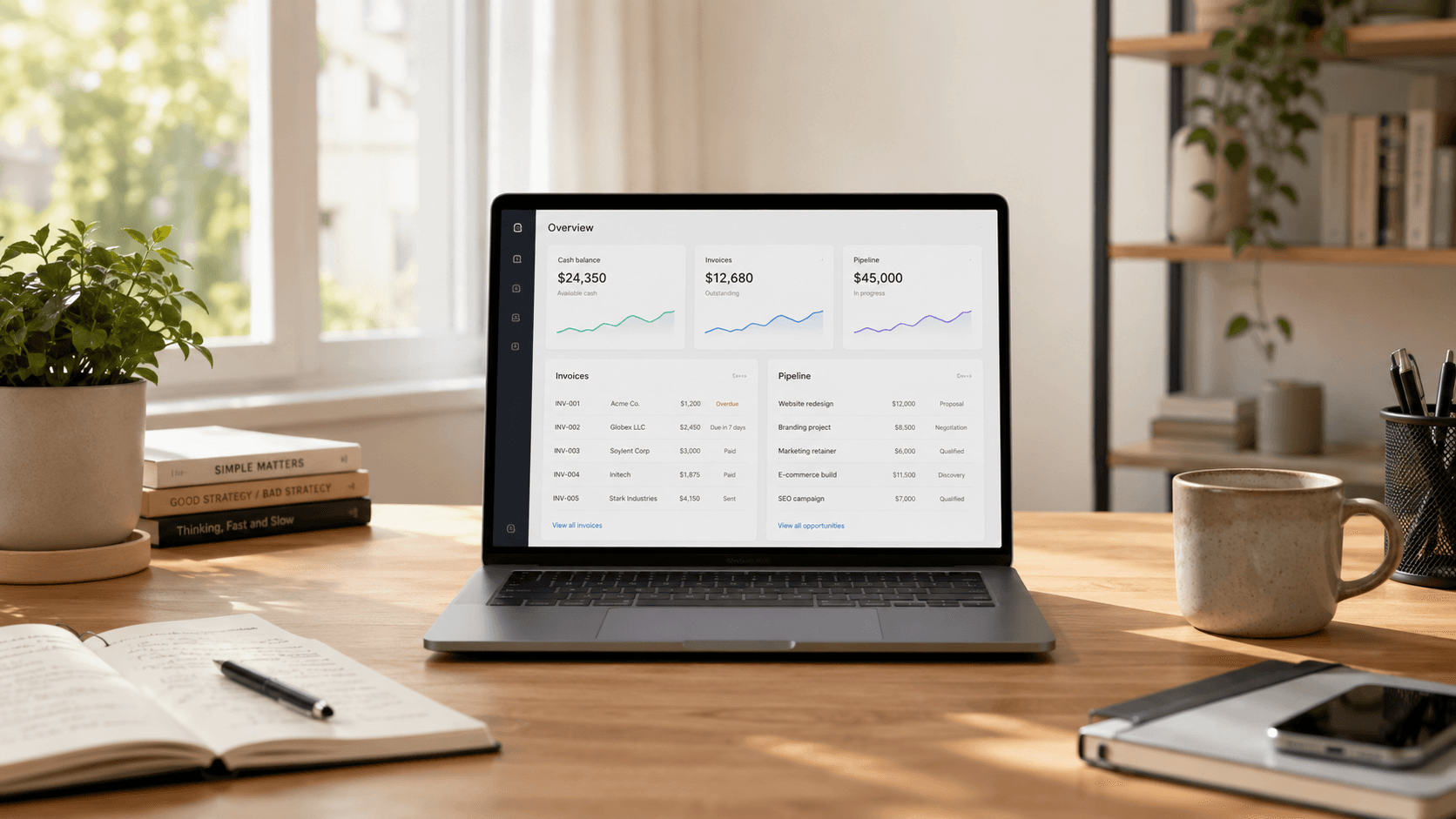
Claude for Small Business: Complete 2026 Setup Guide
Set up Claude for Small Business: Cowork plugin, QuickBooks and HubSpot connectors, 15 workflows, Pro vs Team pricing, and when ChatGPT Work or Gemini fits better.
The AI edge, delivered every Tuesday
One 5-minute email: the tools worth your money, the plays that are working right now, and zero hype. Unsubscribe anytime.
No spam. No selling your data. Read by owners of restaurants, gyms, clinics, and agencies across the US, UK, Canada, and Australia.